Learn programming with Pygame Zero
Let’s start at the beginning. This tutorial is for those with no programming experience whatsoever. We’re going to learn to make a simple but perhaps fun game.
I’m going to assume Pygame Zero is installed already and you know how to use a text editor.
Creating a blank file
First, create an empty file called “fishfrenzy.py” by creating a new, empty file in your editor and saving it as “fishfrenzy.py” in a new directory.
Verify that this runs and creates a blank window by running
cd the_directory_you_created
pgzrun fishfrenzy.py
How you run this may depend on your editor, shell, or loads of other things.
If this step failed, then you may be in the wrong directory, or Python or Pygame Zero may not be installed correctly - or hundreds of other things. In many ways this is the hardest step, because it’s beyond the scope of this tutorial to explain things, given how many different configurations there are: what operating system you are running, what version of Python, what version of Pygame Zero.
But with any luck you can get it to work! If you see a blank “Pygame Zero Game” window, we’re good to move on.
Really stuck?
You can get into a support chat room by going to
http://webchat.freenode.net?randomnick=1&channels=%23%23learnpython&uio=d4
Functions
Let’s begin for real.
In most programming languages we program by defining a series of steps that the computer will carry out for us, like a recipe. In bakery, you might have a recipe like:
Cake Recipe
- Add flour to the bowl
- Add sugar to the bowl
- Add butter to the bowl
- Add an egg to the bowl
- Whisk the ingredients
- Pour into a cake tin
- Bake it
… and so on. (Don’t try this recipe. I am not a chef.)
A game among programmers is to imagine how this would look as a program in an imaginary computer that understood whatever instructions you could name (this is called pseudocode - because it looks like code, but it doesn’t actually work). If we translated this recipe into Python, it would look like this:
def cake_recipe():
    bowl.add(flour)
    bowl.add(sugar)
    bowl.add(butter)
    bowl.add(egg)
    whisk(bowl)
    cake_tin.add(bowl.get_contents())
    bake(cake_tin)
That’s pretty similar, isn’t it? We’ve had to spell the names of some of the words differently, but basically, each line of the program is equivalent to one line of the recipe - one “action”.
The top line with def is defining a recipe called cake_recipe, and all
of the other lines are steps in the recipe. And in fact - because they all use
parentheses - they refer to other recipes that the computer might know.
So, let’s write a real recipe in Pygame Zero. In your editor, let’s write a
draw recipe. Pygame Zero knows how to call a function called draw:
def draw():
    screen.clear()
    screen.draw.circle((400, 300), 30, (255, 255, 255))
Run it with:
pgzrun fishfrenzy.py
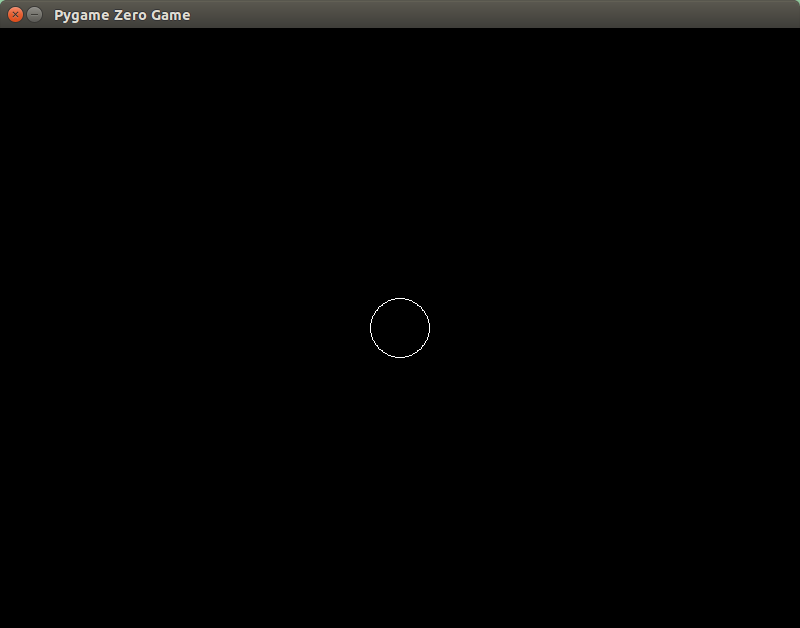
Did it work? Do you see the circle? On my screen it looks like this:
If Pygame Zero didn’t show a window, or showed a window that disappeared straight away, look at the error message it displayed:
SyntaxError- Probably means you are missing a parenthesis or your indentation doesn’t match mine. Note how each step of the function has to be aligned with each other, but indented more than thedefat the top.AttributeErrororNameError- You probably mispelled something.TypeError- did you put some of the parentheses in the wrong places?
If the window appears, but nothing happens, did you misspell “draw”? Or any of the numbers?
Check carefully if it doesn’t work first time and you should be able to get it to work after a few attempts.
So we created a recipe that includes two steps:
Clear the screen to black
Draw a circle on the screen:
- At the middle
(400, 300). These are coordinates for the center of the circle, in pixels from the left then pixels from the top. - Of radius
30pixels. - And draw it in white, which is written as three numbers, red, green and
blue:
(255, 255, 255). White is an equal mix of red, green and blue, and255is the most you can have.
- At the middle
You can play with all of these numbers.
Diversion: Local and Global Variables
Suppose we wrote the following code:
RED = 150, 0, 0
GREEN = 0, 128, 0

bg = RED

def draw():
    screen.fill(bg)

def on_mouse_down():
    bg = GREEN

def on_mouse_up():
    bg = RED
In some languages, this would work: the screen would change to green when the mouse button was pressed, and change back to red when the button is released.
This code doesn’t work in Python. If you try it, you will not see the screen change to green. Why?
When you assign with the = operator inside a function, as at line 10 (and
line 13), you create a “local” variable called bg that exists only with the
function. The bg we want to change is in the global scope. It’s actually
a very sensible feature; you don’t want to
The fix is to declare in on_mouse_down() and on_mouse_up() that we
want to modify the global variable, not create a new local variable. We do
this with the global statement. The correct code in Pygame Zero is:
RED = 150, 0, 0
GREEN = 0, 128, 0

bg = RED

def draw():
    screen.fill(bg)

def on_mouse_down():
    global bg
    bg = GREEN

def on_mouse_up():
    global bg
    bg = RED